Monday, 19 September 2016

Using sysdig for Linux system monitoring & troubleshooting


Sysdig is a multi-faceted system monitoring & troubleshooting tool that is touted as "tcpdump + strace + lsof + much more". One of the many powerful features of sysdig is that along with analyzing the live state of a system it allows trace data to be saved to a file for later system exploration & inspection.
Sysdig's functionality is enhanced when used with in combination with small scripts called chisels. These chisels allow us to use sysdig for diagnosing a specific area of system functionality like network usage & bottlenecks.

Installing sysdig:

Sysdig rpm & dependencies are available at the atomic repository for Centos. sysdig requires dkms to be installed as a pre-requisite. I downloaded the dkms & sysdig rpms & installed them as follows:

[root@centdb DB]# rpm -ivh dkms-2.2.0.3-21.el6.art.noarch.rpm
warning: dkms-2.2.0.3-21.el6.art.noarch.rpm: Header V3 RSA/SHA1 Signature, key ID 4520afa9: NOKEY
Preparing...                ########################################### [100%]
   1:dkms                   ########################################### [100%]
[root@centdb DB]# rpm -ivh sysdig-0.1.100-13.el6.art.x86_64.rpm
warning: sysdig-0.1.100-13.el6.art.x86_64.rpm: Header V3 RSA/SHA1 Signature, key ID 4520afa9: NOKEY
Preparing...                ########################################### [100%]
   1:sysdig                 ########################################### [100%]

Creating symlink /var/lib/dkms/sysdig/0.1.100/source ->
                 /usr/src/sysdig-0.1.100

DKMS: add completed.

Kernel preparation unnecessary for this kernel.  Skipping...

Building module:
cleaning build area...
make KERNELRELEASE=2.6.32-573.el6.x86_64 -C /lib/modules/2.6.32-573.el6.x86_64/build M=/var/lib/dkms/sysdig/0.1.100/build.....
cleaning build area...

DKMS: build completed.

sysdig-probe:
Running module version sanity check.
 - Original module
   - No original module exists within this kernel
 - Installation
   - Installing to /lib/modules/2.6.32-573.el6.x86_64/extra/
Adding any weak-modules

depmod....

DKMS: install completed.


Running sysdig without any arguments dumps whatever is going on in the system & it's difficult to analyze this raw information.

[root@centdb DB]# sysdig

7 19:51:47.877122494 0 sysdig (19330) > switch next=2724(netdata) pgft_maj=20 pgft_min=1737 vm_size=36324 vm_rss=4220 vm_swap=0
8 19:51:47.877126062 0 netdata (2724) < nanosleep res=0
9 19:51:47.877139073 0 netdata (2724) > nanosleep interval=20000000(0.02s)
10 19:51:47.877142506 0 netdata (2724) > switch next=0 pgft_maj=2 pgft_min=53 vm_size=671084 vm_rss=21028 vm_swap=0
11 19:51:47.877170219 0 <NA> (0) > switch next=2524(oracle) pgft_maj=0 pgft_min=0 vm_size=0 vm_rss=0 vm_swap=0
12 19:51:47.877171972 0 oracle (2524) < nanosleep res=0
13 19:51:47.877181147 0 oracle (2524) > nanosleep interval=10000000(0.01s)
14 19:51:47.877183038 0 oracle (2524) > switch next=0 pgft_maj=1 pgft_min=3938 vm_size=620608 vm_rss=14572 vm_swap=0
15 19:51:47.888620415 0 <NA> (0) > switch next=2524(oracle) pgft_maj=0 pgft_min=0 vm_size=0 vm_rss=0 vm_swap=0
16 19:51:47.888626880 0 oracle (2524) < nanosleep res=0
17 19:51:47.888682462 0 oracle (2524) > nanosleep interval=10000000(0.01s)
18 19:51:47.888690219 0 oracle (2524) > switch next=0 pgft_maj=1 pgft_min=3938 vm_size=620608 vm_rss=14572 vm_swap=0
19 19:51:47.899400592 0 <NA> (0) > switch next=1624(vmtoolsd) pgft_maj=0 pgft_min=0 vm_size=0 vm_rss=0 vm_swap=0
20 19:51:47.899412594 0 vmtoolsd (1624) < poll res=0 fds=
21 19:51:47.899428631 0 vmtoolsd (1624) > times


To make more sense of the information provided by sysdig we use chisels to provide information about specific aspects of system operation. To list the available chisels sorted by categories type:

root@centdb DB]# sysdig -cl | more

Category: CPU Usage
-------------------
spectrogram         Visualize OS latency in real time.
subsecoffset        Visualize subsecond offset execution time.
topcontainers_cpu   Top containers by CPU usage
topprocs_cpu        Top processes by CPU usage

Category: Errors
----------------
topcontainers_error Top containers by number of errors
topfiles_errors     Top files by number of errors
topprocs_errors     top processes by number of errors


To execute a specific chisel type sysdig with "-c" option followed by the name of the chisel you want to execute. For example, to view the slowest system calls on the server type:

[root@centdb DB]# sysdig -c bottlenecks

^C167858) 0.000000000 rs:main (1953) > futex addr=7FED2BFDBA04 op=128(FUTEX_PRIVATE_FLAG) val=365
1197980) 120.014706578 rs:main (1953) < futex res=0
167851) 0.000000000 rsyslogd (1955) > select
1197973) 120.014636013 rsyslogd (1955) < select res=1
339895) 0.000000000 vmware-vmblock- (1607) > read fd=3(<f>/dev/fuse) size=135168
1369942) 119.757423686 vmware-vmblock- (1607) < read res=40 data=(...............................jR......
340055) 0.000000000 vmware-vmblock- (1609) > read fd=3(<f>/dev/fuse) size=135168
1370098) 119.756062546 vmware-vmblock- (1609) < read res=40 data=(...............................kR......
342198) 0.000000000 auditd (1919) > futex addr=7FBD50847254 op=128(FUTEX_PRIVATE_FLAG) val=133
1197586) 116.007123841 auditd (1919) < futex res=0
159517) 0.000000000 at-spi-registry (2974) > poll fds=5:p1 7:p3 9:u1 10:u3 11:u3 12:u3 14:u3 15:u3 16:u3 17:u3 18:u3 19:u3 20:u3 21:u3 22:u3 23:u3 26:u3 27:u3 28:u3 29:u3 13:u1 timeout=-1


In the above output, the columns 2,3 & 4 indicate the execution time, process name & PID of the process respectively.

Monitoring user activities:

If we want to monitor user activities on the system like commands run & files updated we use the spy_users chisel.

First we'll collect a sysdig trace with a few extra options:

sysdig -s 8092 -z -w /tmp/sysdig/`hostname`.trace.gz

-s 8092" tells sysdig to capture up to 4096 bytes of each event.
-z" (used with "-w") enables compression for a trace file.
-w <trace-file>" saves sysdig traces to a specified file.

Once we've collected data & stopped the trace, we can view the activities of users on the system by typing:


[root@centdb ~]# sysdig -r /tmp/sysdig/centdb.trace.gz -c spy_users | more
61374 21:01:53 netdata) /bin/date +%s * 1000 + %-N / 1000000
61374 21:01:54 netdata) /bin/date +%s * 1000 + %-N / 1000000
61374 21:01:55 netdata) /bin/date +%s * 1000 + %-N / 1000000
61374 21:01:56 netdata) /bin/date +%s * 1000 + %-N / 1000000
61374 21:01:57 netdata) /bin/date +%s * 1000 + %-N / 1000000
22132 21:01:57 test) uname -a
22132 21:01:58 test) date

To filter out a particular use type:

[root@centdb ~]# sysdig -r /tmp/sysdig/centdb.trace.gz -c spy_users "user.name=test"
22132 21:01:57 test) uname -a
22132 21:01:58 test) date
22132 21:02:01 test) sudo su -

After switching to root although the commands will be run as root but the PID 22132 won't change as shown below:

[root@centdb ~]# sysdig -r /tmp/sysdig/centdb.trace.gz -c spy_users | grep 22132
22132 21:01:57 test) uname -a
22132 21:01:58 test) date
22132 21:02:01 test) sudo su -
   22132 21:02:01 root) su -
      22132 21:02:01 root) -bash
22132 21:02:01 root) id -un
22132 21:02:01 root) /bin/hostname
22132 21:02:02 root) tty -s
22132 21:02:02 root) tput colors
22132 21:02:02 root) dircolors --sh /etc/DIR_COLORS
         22132 21:02:02 root) grep -qi ^COLOR.*none /etc/DIR_COLORS
         22132 21:02:02 root) grep -qs ^PRELINKING=yes /etc/sysconfig/prelink
22132 21:02:02 root) /sbin/consoletype stdout
22132 21:02:02 root) /usr/bin/id -u
         22132 21:02:06 root) whoami
         22132 21:02:10 root) id -a

This article was a basic introduction to sysdig usage. You can checkout more examples & documentation here.

Sunday, 18 September 2016

Installation of Nagios core on Centos 6

Nagios core is a free & open source monitoring platform that can be used to monitor applications, networks & servers under a single pane of glass unified view. It consists of an enormous number of plugins that can be used to enhance its functionality. Nagios core has a server client architecture wherein the nagios core & plugins are installed on the server & NRPE (nagios remote plugin executor) is installed on the client side on *nix servers. On windows servers the client component is NSClient++.

Getting the software:
Nagios core source, nagios core plugins & NRPE can be downloaded from source forge.

Installing nagios core:


We require some pre-requisite packages before installing nagios core.

yum install httpd php gcc glibc glibc-devel gd gd-devel -y

It's not recommended to install nagios as root so first we'll add nagios user & group.

[root@centops ~]# useradd -m nagios
[root@centops ~]# passwd nagios
Changing password for user nagios.
New password:
BAD PASSWORD: it is WAY too short
BAD PASSWORD: is too simple
Retype new password:
passwd: all authentication tokens updated successfully.

We'll run our commands as nagcmd group & make nagios & apcahe members of this group.

[root@centops ~]# groupadd nagcmd
[root@centops ~]# usermod -G nagcmd nagios
[root@centops ~]#

[root@centops ~]# usermod -a -G nagcmd apache
[root@centops ~]#

We'll extract nagios core source code

root@centops ~]# tar zxvf nagios-4.2.1.tar.gz
nagios-4.2.1/
nagios-4.2.1/.gitignore
nagios-4.2.1/Changelog
nagios-4.2.1/INSTALLING
nagios-4.2.1/LEGAL
nagios-4.2.1/LICENSE
nagios-4.2.1/Makefile.in
nagios-4.2.1/README
nagios-4.2.1/README.asciidoc
nagios-4.2.1/THANKS
nagios-4.2.1/UPGRADING
nagios-4.2.1/base/
nagios-4.2.1/base/.gitignore
nagios-4.2.1/base/Makefile.in
nagios-4.2.1/base/broker.c
nagios-4.2.1/base/checks.c
nagios-4.2.1/base/commands.c

-------------------------------------------
-------------------------------------------

Now run configure to check for system configuration & make version:

[root@centops nagios-4.2.1]# ./configure --with-command-group=nagcmd
checking for a BSD-compatible install... /usr/bin/install -c
checking build system type... x86_64-unknown-linux-gnu
checking host system type... x86_64-unknown-linux-gnu
checking for gcc... gcc
checking whether the C compiler works... yes
checking for C compiler default output file name... a.out
checking for suffix of executables...
checking whether we are cross compiling... no
checking for suffix of object files... o
checking whether we are using the GNU C compiler... yes
checking whether gcc accepts -g... yes
checking for gcc option to accept ISO C89... none needed
checking whether make sets $(MAKE)... yes
checking for strip... /usr/bin/strip
checking how to run the C preprocessor... gcc -E

-----------------------------------------------------------

Creating sample config files in sample-config/ ...


*** Configuration summary for nagios 4.2.1 09-06-2016 ***:

 General Options:
 -------------------------
        Nagios executable:  nagios
        Nagios user/group:  nagios,nagios
       Command user/group:  nagios,nagcmd
             Event Broker:  yes
        Install ${prefix}:  /usr/local/nagios
    Install ${includedir}:  /usr/local/nagios/include/nagios
                Lock file:  ${prefix}/var/nagios.lock
   Check result directory:  ${prefix}/var/spool/checkresults
           Init directory:  /etc/rc.d/init.d
  Apache conf.d directory:  /etc/httpd/conf.d
             Mail program:  /bin/mail
                  Host OS:  linux-gnu
          IOBroker Method:  epoll

 Web Interface Options:
 ------------------------
                 HTML URL:  http://localhost/nagios/
                  CGI URL:  http://localhost/nagios/cgi-bin/
 Traceroute (used by WAP):  /bin/traceroute


Review the options above for accuracy.  If they look okay,
type 'make all' to compile the main program and CGIs.


Then we run make all to use the MAKEFIILE & start compiling the nagios core source code.

# make all
Then run make install to put the binaries generated after source code compilation in the path /usr/local/

 #make install
--------------------------------------------------------------
 *** Main program, CGIs and HTML files installed ***

You can continue with installing Nagios as follows (type 'make'
without any arguments for a list of all possible options):

  make install-init
     - This installs the init script in /etc/rc.d/init.d

  make install-commandmode
     - This installs and configures permissions on the
       directory for holding the external command file

  make install-config
     - This installs sample config files in /usr/local/nagios/etc

make[1]: Leaving directory `/root/nagios-4.2.1'


Run make inistall-init to create the init script:

[root@centops nagios-4.2.1]# make install-init
/usr/bin/install -c -m 755 -d -o root -g root /etc/rc.d/init.d
/usr/bin/install -c -m 755 -o root -g root daemon-init /etc/rc.d/init.d/nagios

*** Init script installed ***

[root@centops nagios-4.2.1]# make install-config
/usr/bin/install -c -m 775 -o nagios -g nagios -d /usr/local/nagios/etc
/usr/bin/install -c -m 775 -o nagios -g nagios -d /usr/local/nagios/etc/objects
/usr/bin/install -c -b -m 664 -o nagios -g nagios sample-config/nagios.cfg /usr/local/nagios/etc/nagios.cfg
/usr/bin/install -c -b -m 664 -o nagios -g nagios sample-config/cgi.cfg /usr/local/nagios/etc/cgi.cfg
/usr/bin/install -c -b -m 660 -o nagios -g nagios sample-config/resource.cfg /usr/local/nagios/etc/resource.cfg
/usr/bin/install -c -b -m 664 -o nagios -g nagios sample-config/template-object/templates.cfg /usr/local/nagios/etc/objects/templates.cfg
/usr/bin/install -c -b -m 664 -o nagios -g nagios sample-config/template-object/commands.cfg /usr/local/nagios/etc/objects/commands.cfg
/usr/bin/install -c -b -m 664 -o nagios -g nagios sample-config/template-object/contacts.cfg /usr/local/nagios/etc/objects/contacts.cfg
/usr/bin/install -c -b -m 664 -o nagios -g nagios sample-config/template-object/timeperiods.cfg /usr/local/nagios/etc/objects/timeperiods.cfg
/usr/bin/install -c -b -m 664 -o nagios -g nagios sample-config/template-object/localhost.cfg /usr/local/nagios/etc/objects/localhost.cfg
/usr/bin/install -c -b -m 664 -o nagios -g nagios sample-config/template-object/windows.cfg /usr/local/nagios/etc/objects/windows.cfg
/usr/bin/install -c -b -m 664 -o nagios -g nagios sample-config/template-object/printer.cfg /usr/local/nagios/etc/objects/printer.cfg
/usr/bin/install -c -b -m 664 -o nagios -g nagios sample-config/template-object/switch.cfg /usr/local/nagios/etc/objects/switch.cfg

*** Config files installed ***

Remember, these are *SAMPLE* config files.  You'll need to read
the documentation for more information on how to actually define
services, hosts, etc. to fit your particular needs.

[root@centops nagios-4.2.1]# make install-commandmode
/usr/bin/install -c -m 775 -o nagios -g nagcmd -d /usr/local/nagios/var/rw
chmod g+s /usr/local/nagios/var/rw

*** External command directory configured ***

[root@centops nagios-4.2.1]#

You can edit the /usr/local/nagios/etc/objects/contacts.cfg file to add contacts of people who should be alerted when something goes wrong.

To get required apache config in place run 

[root@centops nagios-4.2.1]# make install-webconf
/usr/bin/install -c -m 644 sample-config/httpd.conf /etc/httpd/conf.d/nagios.conf

*** Nagios/Apache conf file installed ***

[root@centops nagios-4.2.1]#

Now we'll use htpasswd to create & update the username & password we'll use for logging into the nagios web interface.

[root@centops nagios-4.2.1]# htpasswd -c /usr/local/nagios/etc/htpasswd.users nagiosadmin
New password:
Re-type new password:
Adding password for user nagiosadmin
[root@centops nagios-4.2.1]#

Now restart the apache service

[root@centops nagios-4.2.1]# service httpd restart
Stopping httpd:                                            [  OK  ]
Starting httpd: httpd: Could not reliably determine the server's fully qualified domain name, using 192.168.44.138 for ServerName
                                                           [  OK  ]
[root@centops nagios-4.2.1]#

Now, we'll install the nagios core plugins from nagios-plugins-2.1.3.tar.gz. Extract the file & run configure followed by make install.

[root@centops nagios-plugins-2.1.3]# ./configure --with-nagios-user=nagios --with-nagios-group=nagios

[root@centops nagios-plugins-2.1.3]# make install

Configure nagios to start on boot:

[root@centops nagios-plugins-2.1.3]# chkconfig --add nagios
[root@centops nagios-plugins-2.1.3]# chkconfig nagios on
[root@centops nagios-plugins-2.1.3]#

We'll verify our nagios configuration file & make sure its error free

[root@centops nagios-plugins-2.1.3]# /usr/local/nagios/bin/nagios -v /usr/local/nagios/etc/nagios.cfg

Nagios Core 4.2.1
Copyright (c) 2009-present Nagios Core Development Team and Community Contributors
Copyright (c) 1999-2009 Ethan Galstad
Last Modified: 09-06-2016
License: GPL

Website: https://www.nagios.org
Reading configuration data...
   Read main config file okay...
   Read object config files okay...

Running pre-flight check on configuration data...

Checking objects...
        Checked 8 services.
        Checked 1 hosts.
        Checked 1 host groups.
        Checked 0 service groups.
        Checked 1 contacts.
        Checked 1 contact groups.
        Checked 24 commands.
        Checked 5 time periods.
        Checked 0 host escalations.
        Checked 0 service escalations.
Checking for circular paths...
        Checked 1 hosts
        Checked 0 service dependencies
        Checked 0 host dependencies
        Checked 5 timeperiods
Checking global event handlers...
Checking obsessive compulsive processor commands...
Checking misc settings...

Total Warnings: 0
Total Errors:   0

Things look okay - No serious problems were detected during the pre-flight check
[root@centops nagios-plugins-2.1.3]#

Start the nagios service

root@centops ~]# service nagios start
Starting nagios: done.
[root@centops ~]#

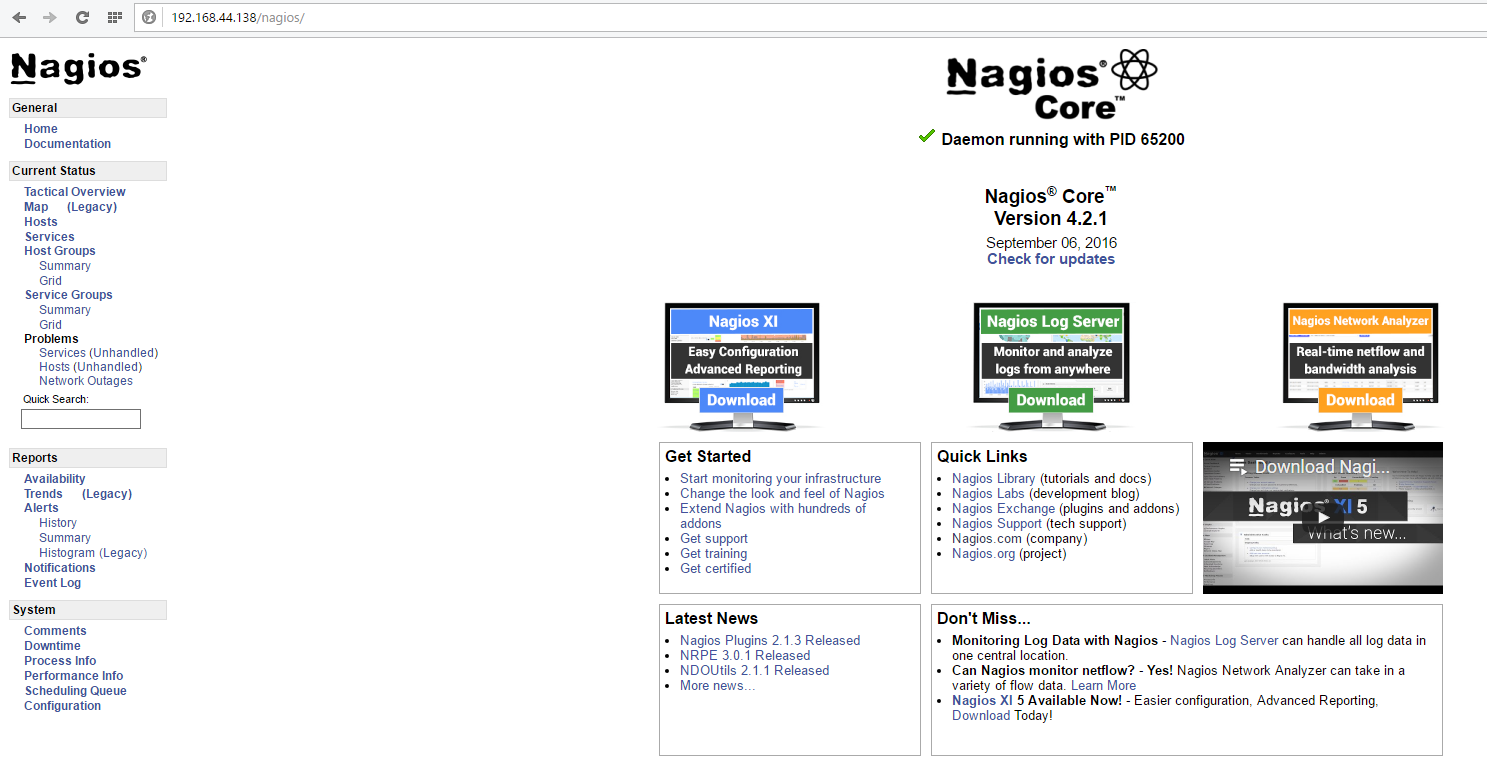
Now, if we point out browser to the URL http://<IP address>/nagios we will get a username/password prompt. Enter the credentials created with htpasswd earlier & we'll be able to login to the nagios core homepage:


To check for hosts currently being monitored click on hosts tab on the left.


Only locahost is being monitored for now.


Installing nagios client:


We need to install a couple of pre-requisites before installing nrpe.

yum install openssl*  xinetd -y

Add the nagios user on client server:

[root@rheldb nrpe-3.0.1]# useradd nagios
[root@rheldb nrpe-3.0.1]#

Extract the fiel nrpe-3.0.1.tar.gz downloaded from source forge & then run configure.

[root@rheldb nrpe-3.0.1]# ./configure
checking for a BSD-compatible install... /usr/bin/install -c
checking what the operating system is ... linux
checking what the distribution type is ... rh
checking what init system is being used ... upstart

*** Configuration summary for nrpe 3.0.1 09-08-2016 ***:

 General Options:
 -------------------------
 NRPE port:    5666
 NRPE user:    nagios
 NRPE group:   nagios
 Nagios user:  nagios
 Nagios group: nagios


Review the options above for accuracy.  If they look okay,
type 'make all' to compile the NRPE daemon and client
or type 'make' to get a list of make options.

Now run make all followed by make install to compile the source code & generate the binaries.

[root@rheldb nrpe-3.0.1]# make all
cd ./src/; make
make[1]: Entering directory `/root/nrpe-3.0.1/src'
gcc -g -O2 -I/usr/include/krb5   -DHAVE_CONFIG_H -I ../include -I ./../include -o nrpe ./nrpe.c ./utils.c ./acl.c -L/usr/lib6464    -lssl -lcrypto -ldl -lz   -lnsl
gcc -g -O2 -I/usr/include/krb5   -DHAVE_CONFIG_H -I ../include -I ./../include -o check_nrpe ./check_nrpe.c ./utils.c -L/usr/lib6464    -lssl -lcrypto -ldl -lz   -lnsl
make[1]: Leaving directory `/root/nrpe-3.0.1/src'

*** Compile finished ***

You can now continue with the installation or upgrade process.

Read the PDF documentation (NRPE.pdf) for information on the next
steps you should take to complete the installation or upgrade.

[root@rheldb nrpe-3.0.1]# make install
cd ./src/; make install
make[1]: Entering directory `/root/nrpe-3.0.1/src'
make install-plugin
make[2]: Entering directory `/root/nrpe-3.0.1/src'
/usr/bin/install -c -m 755 -d /usr/local/nagios/bin
/usr/bin/install -c -m 755 ../uninstall /usr/local/nagios/bin/nrpe-uninstall
/usr/bin/install -c -m 775 -o nagios -g nagios -d /usr/local/nagios/libexec
/usr/bin/install -c -m 775 -o nagios -g nagios check_nrpe /usr/local/nagios/libexec
make[2]: Leaving directory `/root/nrpe-3.0.1/src'
make install-daemon
make[2]: Entering directory `/root/nrpe-3.0.1/src'
/usr/bin/install -c -m 755 -d /usr/local/nagios/bin
/usr/bin/install -c -m 755 ../uninstall /usr/local/nagios/bin/nrpe-uninstall
/usr/bin/install -c -m 755 nrpe /usr/local/nagios/bin
/usr/bin/install -c -m 755 -o nagios -g nagios -d /usr/local/nagios/var
make[2]: Leaving directory `/root/nrpe-3.0.1/src'
make[1]: Leaving directory `/root/nrpe-3.0.1/src'
[root@rheldb nrpe-3.0.1]#

Restart the xinetd service

[root@rheldb xinetd.d]# service xinetd restart
Stopping xinetd:                                           [FAILED]
Starting xinetd:                                           [  OK  ]

Now we will create the nrpe configuration file for xinetd. Xinetd is a service that listens for incoming requests over the network & starts the appropriate service for that request.

Here's our xinetd configuration file for nrpe

[root@rheldb libexec]# cat /etc/xinetd.d/nrpe
service nrpe
{
        flags           = REUSE
        port            = 5666
        socket_type     = stream
        wait            = no
        user            = nagios
        group           = nagios
        server          = /usr/local/nagios/bin/nrpe
        server_args     = -c /usr/local/nagios/etc/nrpe.cfg --inetd
        log_on_failure  += USERID
        disable         = no
only_from       = 127.0.0.1 192.168.44.138
}

Restart the xinetd service again.

We'll also make an entry in /etc/services file for nrpe. This will allow for a more readable output when we are looking into netstat.

[root@centops ~]# grep nrpe /etc/services
nrpe            5666/tcp                #NRPE Nagios
[root@centops ~]#

Create a directory /usr/local/nagios/etc where we'll keep our nrpe configuration file.

#mkdir /usr/local/nagios/etc

In the directory where nrpe source code was extracted there will be a directory called sample-config.
go to that directory & copy the file nrpe.cfg to  /usr/local/nagios/etc

[root@rheldb nrpe-3.0.1]# cd sample-config/
[root@rheldb sample-config]# ls
nrpe.cfg  nrpe.cfg.in
[root@rheldb sample-config]# cp nrpe.cfg /usr/local/nagios/etc/
[root@rheldb sample-config]#

In the nrpe.cfg file update the allowed_hosts directive to add the nagios server IP address.

[root@rheldb etc]# grep allowed_hosts nrpe.cfg
allowed_hosts=127.0.0.1,192.168.44.138
[root@rheldb etc]#

To do a sanity check of our client configuration go to path /usr/local/nagios/libexec & run the following command:

[root@rheldb libexec]# ./check_nrpe -H 127.0.0.1
NRPE v3.0.1
[root@rheldb libexec]#

If there is any error with the client configuration the above command will throw an error.

Now, with our client configuration done we need to add this client to out nagios core server to be monitored.
So, head over to the nagios server & go to the path /usr/local/nagios/etc/objects. Here we have sample client configuration templates.

[root@centops objects]# ls
commands.cfg  contacts.cfg localhost.cfg  printer.cfg  switch.cfg  templates.cfg  timeperiods.cfg  windows.cfg

the template localhost.cfg is the one for linux. So we'll copy it to a file called linuxclient.cfg.
This template is the file for localhost. So, in our file linuxclient.cfg we'll replace all instances of localhost with our client server via the sed command.

[root@centops objects]# sed -i 's/localhost/rheldb/g' linuxclient.cfg

In addition to the hostname we also need to update the IP address of the client in the address directive.

[root@centops objects]# grep address  linuxclient.cfg
        address                 192.168.44.135
[root@centops objects]#

Change the ownership of the client template file to nagios.

chown nagios:nagios linuxclient.cfg

Note that we have to create a separate client configuration template for every node that we wish to monitor under nagios.

Now edit the /usr/local/nagios/etc/nagios.cfg file to add the location of the client template 

[root@centops etc]# grep cfg_file nagios.cfg
cfg_file=/usr/local/nagios/etc/objects/commands.cfg
cfg_file=/usr/local/nagios/etc/objects/contacts.cfg
cfg_file=/usr/local/nagios/etc/objects/timeperiods.cfg
cfg_file=/usr/local/nagios/etc/objects/templates.cfg
cfg_file=/usr/local/nagios/etc/objects/localhost.cfg
cfg_file=/usr/local/nagios/etc/objects/linuxclient.cfg
#cfg_file=/usr/local/nagios/etc/objects/windows.cfg
#cfg_file=/usr/local/nagios/etc/objects/switch.cfg
#cfg_file=/usr/local/nagios/etc/objects/printer.cfg
# object configuration files (see the cfg_file and cfg_dir options above).
[root@centops etc]#

Finally restart the nagios service & open up the browser again.

[root@centops objects]# service nagios restart
Running configuration check...
Stopping nagios: done.
Starting nagios: done.
[root@centops objects]#


We should now be able to see that our client server is now being monitored by nagios core.

This article was a 'tip of the iceberg' very basic installation to demonstrate how we can install & configure nagios to monitor linux clients.

Getting started with Splunk Lite on Centos 6


Splunk is a powerful log processing, indexing & analysis engine which can be used to not only search the data we feed into it but also also thresholds to be configured for anomalies & provides monitoring & alerting functionality as well. We can feed a wide range of data into it including but not limited to syslog, security logs, webserver legs etc.

In this article I've used splunk lite which is free as long as the data fed into it is less than 500MB per day.

Installation:

Splunk lite is a single rpm installation & the package can be downloaded from the official website.
By default splunk will install in the /opt directory. To start splunk go to the path /opt/splunk/bin/ & type type:

[root@centops ~]# cd /opt/splunk/bin/
[root@centops bin]# ./splunk start
splunkd 4997 was not running.
Stopping splunk helpers...
                                                           [  OK  ]
Done.
Stopped helpers.
Removing stale pid file... done.

Splunk> Take the sh out of IT.

Checking prerequisites...
        Checking http port [8000]: open
        Checking mgmt port [8089]: open
        Checking appserver port [127.0.0.1:8065]: open
        Checking configuration...  Done.
        Checking critical directories...        Done
        Checking indexes...
                Validated: _audit _internal _introspection _thefishbucket history main summary
        Done
        Checking filesystem compatibility...  Done
        Checking conf files for problems...
        Done
        Checking default conf files for edits...
        Validating installed files against hashes from '/opt/splunk/splunklight-6.4.3-b03109c2bad4-linux-2.6-x86_64-manifest'
        All installed files intact.
        Done
All preliminary checks passed.

Starting splunk server daemon (splunkd)...
Done
                                                           [  OK  ]

Waiting for web server at http://127.0.0.1:8000 to be available.......... Done


If you get stuck, we're here to help.
Look for answers here: http://docs.splunk.com

The Splunk web interface is at http://centops:8000


To access the web interface open the URL http://<your IP address>:8000.& the following page should open:


by default the hosts & sources list would be empty. to add localhost as a candidate, go to add data >Manage Add-ons > *nix > enable > set up. Under set up select the files & directories that should be available to splunk for data analysis.

Feeding data from a remote system to splunk:


To feed data from a remote system to splunk we'll be using a universal forwarder.

First, we'll configure splunk to accept data from the universal forwarder:

Click  the menu at the top left of the screen to open the sidebar menu and select Data > Data receiving. Then click Add new.


In the Listen on this port field, enter the port number that you want the Splunk Light instance to listen on and click Save.
The default port is 9997.


Download the universal forwarder pacakge for the specific Linux distribution from the Splunk website & install it.

[root@rheldb ~]# rpm -ivh splunkforwarder-6.4.3-b03109c2bad4-linux-2.6-x86_64.rpm
warning: splunkforwarder-6.4.3-b03109c2bad4-linux-2.6-x86_64.rpm: Header V4 DSA/SHA1 Signature, key ID 653fb112: NOKEY
Preparing...                ########################################### [100%]
   1:splunkforwarder        ########################################### [100%]
complete
[root@rheldb ~]#


                                                           [  OK  ]

By default, the universal forwarder will install in /opt/splunkforwarder. To start the universal forwarder go to the path /opt/splunkforwarder/bin & type:

[root@rheldb bin]# ./splunk start --accept-license

This appears to be your first time running this version of Splunk.

Splunk> Take the sh out of IT.

Checking prerequisites...
        Checking mgmt port [8089]: open
                Creating: /opt/splunkforwarder/var/lib/splunk
                Creating: /opt/splunkforwarder/var/run/splunk
                Creating: /opt/splunkforwarder/var/run/splunk/appserver/i18n
                Creating: /opt/splunkforwarder/var/run/splunk/appserver/modules/static/css
                Creating: /opt/splunkforwarder/var/run/splunk/upload
                Creating: /opt/splunkforwarder/var/spool/splunk
                Creating: /opt/splunkforwarder/var/spool/dirmoncache
                Creating: /opt/splunkforwarder/var/lib/splunk/authDb
                Creating: /opt/splunkforwarder/var/lib/splunk/hashDb
New certs have been generated in '/opt/splunkforwarder/etc/auth'.
        Checking conf files for problems...
        Done
        Checking default conf files for edits...
        Validating installed files against hashes from '/opt/splunkforwarder/splunkforwarder-6.4.3-b03109c2bad4-linux-2.6-x86_64-manifest'
        All installed files intact.
        Done
All preliminary checks passed.

Starting splunk server daemon (splunkd)...
Done
                                                           [  OK  ]

Configure universal forwarder to send data to splunk lite:

./splunk add forward-server <host>:<port> -auth <username>:<password>

[root@rheldb bin]# ./splunk add forward-server 192.168.44.138:9997 -auth admin:changeme
Added forwarding to: 192.168.44.138:9997.
[root@rheldb bin]#

IP address is the address of the splunk lite instance.

Configure universal forwarder to be a deployment client.
The splunk lite instance is the deployment server & will receive inputs from the universal forwarder which will be the deployment client.

./splunk set deploy-poll <host>:<mgmtPort>

[root@rheldb bin]# ./splunk set deploy-poll 192.168.44.138:8089
Configuration updated.

[root@rheldb bin]# ./splunk restart
Stopping splunkd...
Shutting down.  Please wait, as this may take a few minutes.
                                                           [  OK  ]
Stopping splunk helpers...
                                                           [  OK  ]
Done.

Splunk> Take the sh out of IT.

Checking prerequisites...
        Checking mgmt port [8089]: open
        Checking conf files for problems...
        Done
        Checking default conf files for edits...
        Validating installed files against hashes from '/opt/splunkforwarder/splunkforwarder-6.4.3-b03109c2bad4-linux-2.6-x86_64-manifest'
        All installed files intact.
        Done
All preliminary checks passed.

Starting splunk server daemon (splunkd)...
Done
                                                           [  OK  ]
[root@rheldb bin]#

Now we'll configure our splunk lite instance to receive data forwarded by the universal forwarder.

In the Splunk Light user interface, click Search in the top menu bar. In the Search view, under Data on the right of the screen, click the Add Data button.

On the Add Data view, click Forward. Next to Select Server Class, click New. 

Available host(s) are listed, which are the hostnames of the universal forwarders (deployment clients) connected to the Splunk Light instance (deployment server). Under Available host(s), click one or more forwarder hosts to add to the Selected host(s) box. This allows you to add a new Server Class.


In the New Server Class Name field, enter a name for the new server class. Click Next near the top of the screen.

Select the type of data for the universal forwarder to collect. In this example, Files & Directories is selected.


Click Next near the top of the screen. In the Input Settings view, next to Source type click Automatic.

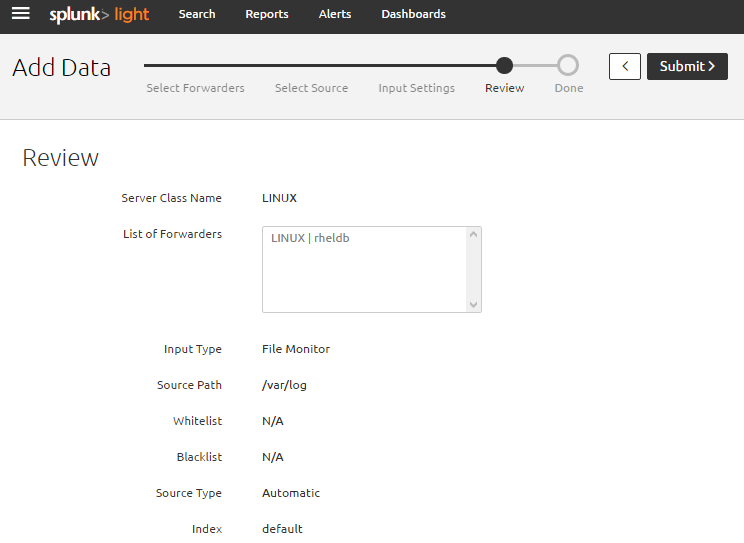
Click Review near the top of the screen. Click Submit.


The File input has been created successfully displays. Click Start Searching to see the data in the Search view.


With that we are ready to start searching.

Select the host we just added & a new search tab will open. From the Selected fields menu on the lower left of the screen under sources we can select one of the log files & open it for analysis:


Using capture groups in grep in Linux

Introduction Let me start by saying that this article isn't about capture groups in grep per se. What we are going to do here with gr...